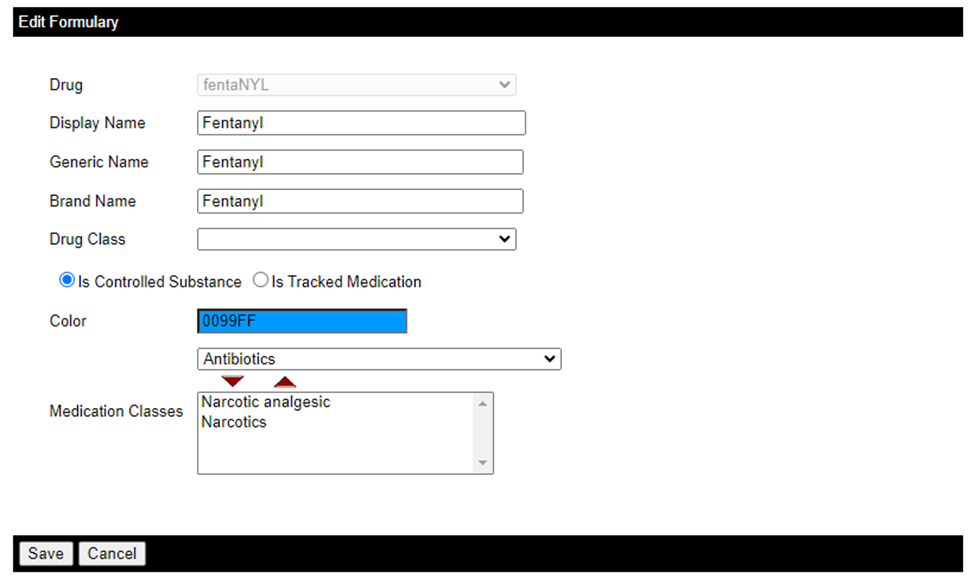
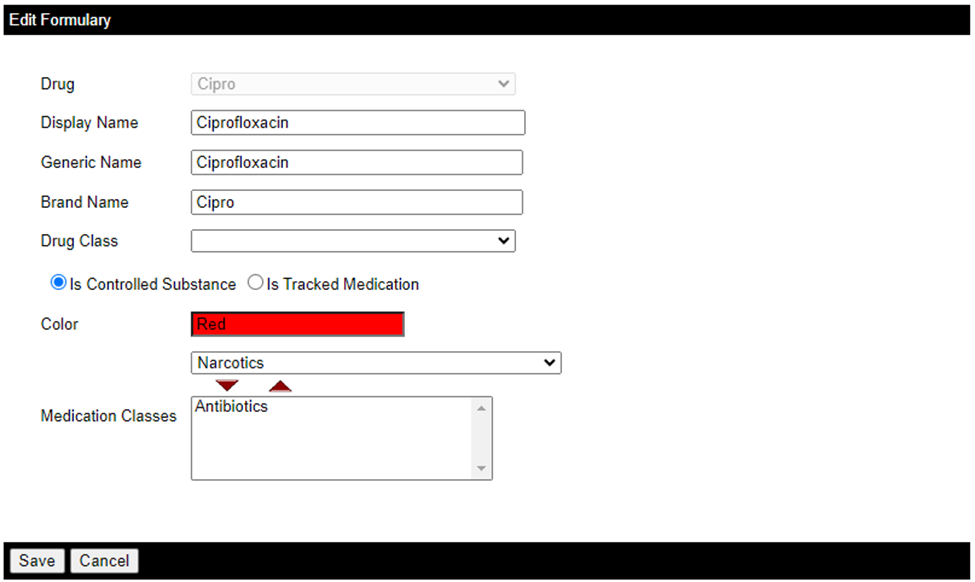
Pharmacists and technicians can update the drug formulary on WebAdmin, including:
- Display name
- Generic name
- Brand name
- Drug class
- Controlled substance
- Tracked medication
- Color on Anesthesia Touch
- Medication classes
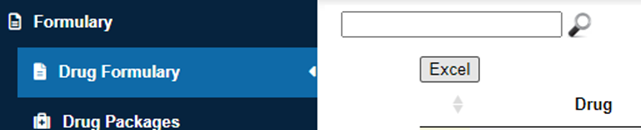
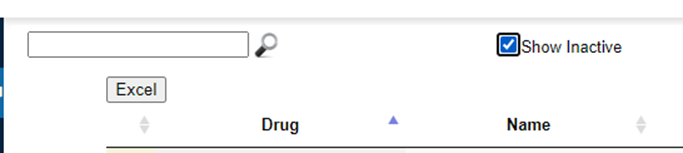
You can export this list as a spreadsheet by clicking Excel at the top.
If you do not see a drug, it may be inactive. Check the box next to Show Inactive to see these drugs.
Editing a Drug in the Formulary
You can edit these options by doing the following:
- Click Formulary and Drug Formulary.
- Type the drug name in the search box at the top.
- Note: Just typing the beginning letters will filter the list and show you the drug you are looking for.
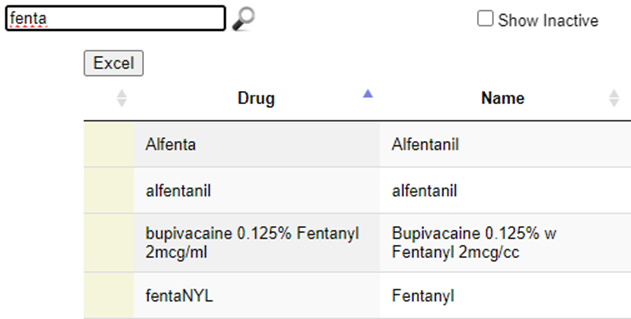
- Note: Just typing the beginning letters will filter the list and show you the drug you are looking for.
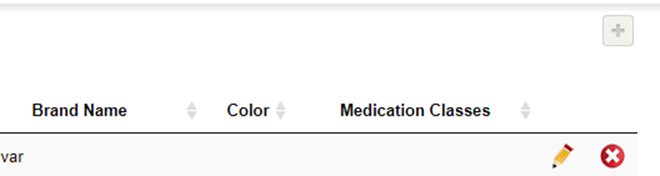
- Click the pencil icon next to the drug you wish to edit.
- Update the drug’s information and click Save.
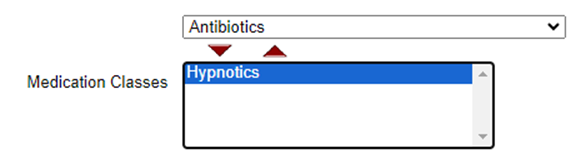
Note: You can add a medication class by selecting the name from the menu and clicking the down arrow. You can remove a class by clicking the class name and the up arrow.
To remove a drug, click the red X next to the name.
Adding a New Drug to the Formulary
To add a new formulary, click the plus sign at the top of the list, add the details as usual, and click Save.