To view the documents for a particular day of surgery in WebAdmin, do the following:
- Click Documents and By DOS.
- This is also the default tab when you click Documents.
- Click the date in the DOS field to open the calendar chooser.
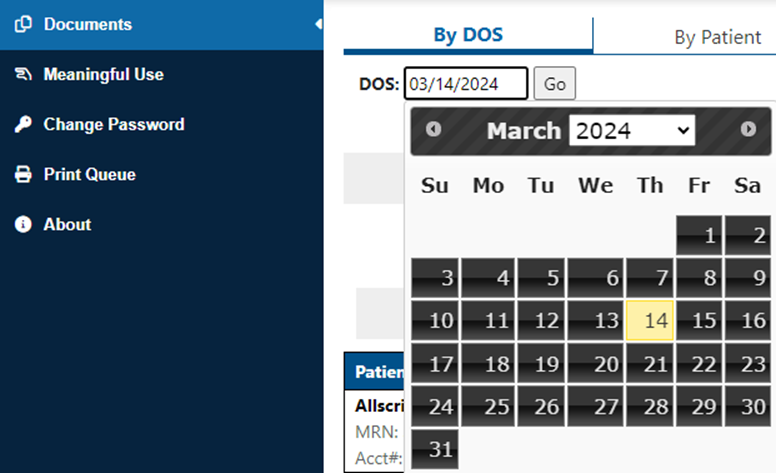
- Select the date and click Go.
- A list of patients and procedures will be displayed for that day.
- Click the link to the document to view it.
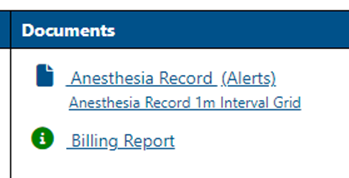
- Alerts will display a pop-up message.
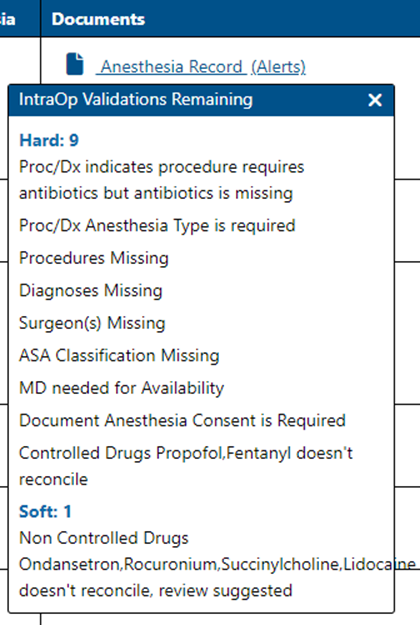
- Alerts will display a pop-up message.
Filters
There are many ways to filter this report.
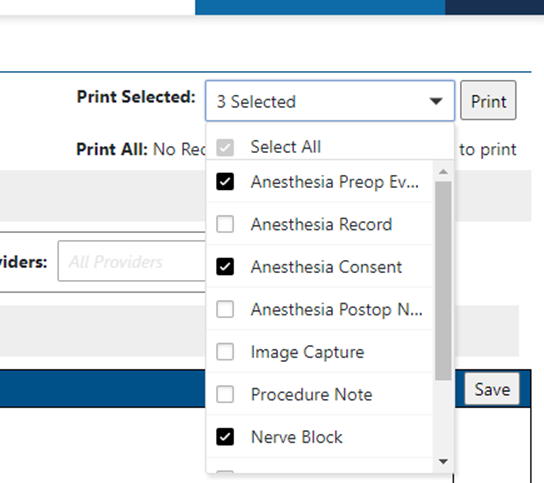
- Select the document type from the Print Selected menu and click Print.
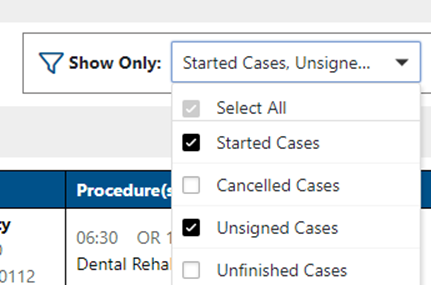
- To view only cases with a specific status, select the case status (e.g., canceled or unsigned) from the Show Only menu and click Load.
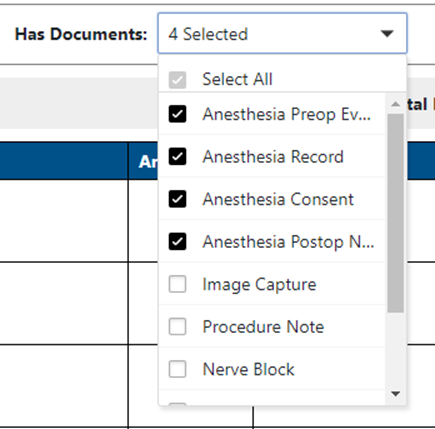
- To view only cases with specific documents, select the document type from the Has Documents menu and click Load.
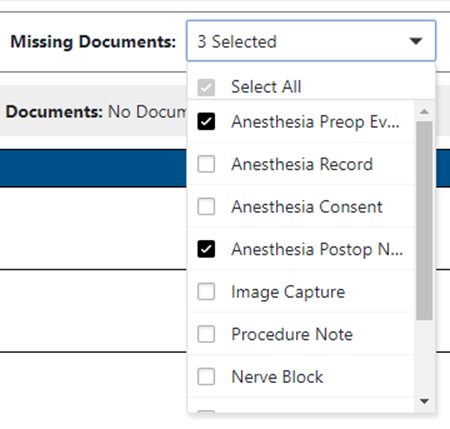
- To view only cases that are missing documents, select the document type from the Missing Documents menu and click Load.
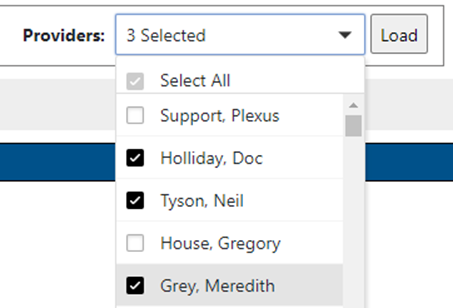
- To view cases by a specific clinician, select the name from the Provider menu and click Load.