
Prerequisites:
Admin role
Instructions:
To remove a document in AT WebAdmin please follow the instructions below.
*All documents can be moved, except for Anesthesia PreOp Evaluation documents.
- In the web browser, navigate to your site’s URL, for example, https://[yoursite].plexus.cloud
- On your site’s landing page, select the “Admin” tile.
- You will be asked to sign in.
- After signing in you will be taken to the "Documents" tab by default unless you have a pharmacy role. Additionally, the URL for the documents tab is https://[yoursite].plexus.cloud/Anesthesia/DocsReview.aspx.
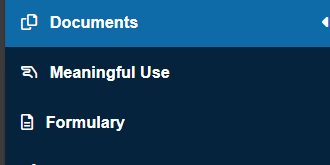
- From here, find any documents you would like to remove/move and gather the MRN's for the patients.
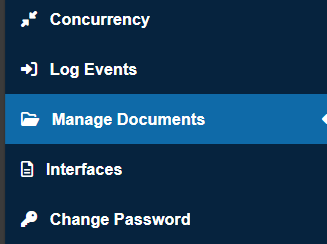
- Navigate to the "Manage Documents" tab (Admin role required).
- Enter the patient MRN in the "Please enter MRN / Account#" box and select "Go".
- Press the "Select" button to the right of the patient record with the block.
- A "Selected Patient Visit Details" box will appear below.
- Under the "Document" column find the block you would like to remove or move to another patient.
- To remove the block, select the red X to the patient's right in the "Status" column.
- To move the block to another patient, select "Select to migrate" (not applicable for Anesthesia PreOp Evaluation documents).
- A box titled "Choose visit to migrate the above selected" will appear below.
- Enter the recipient patient MRN in the "Please enter MRN / Account#" box and select "Go".
- Press the "Select" button to confirm your choice.